A Simpler Recording Process With Ableton

Several months ago, I wrote about two articles on routing audio. I’ve been using various software since then. The first discussed using Ableton along with other applications. Later, I wrote another article because I discovered an alternative, or perhaps just a simpler way, to achieve the same result without Ableton. This alternative used Zoom and Loopback.
Some days earlier, however, I found a simpler way to accomplish my goal of capturing and seperating audio sources in a single recording session. Zoom enables me to stream or host meetings and share them with others, allowing them to observe my processes with music or other content. However, since I work with pre-recorded content, this method didn't need Zoom.
Loopback was still used because it allows you to assign specific sounds to applications in a simple manner once you understand the software, which enables applications to communicate with each other that wouldn’t interact unless another software was in place.
My goal was to split my audio from my MPC software and separate the audio from a microphone in one recording. What was difficult was getting Zoom to separate my audio. A lot of time was wasted. Learning from the first method it was later revealed I didn’t need to use the small device I used before.
My process was indeed simplified. Loopback needed its controls set up and once that was done, I went into Ableton and registered my microphone on one track and the MPC audio on another.
All I needed from there was arm both tracks, then record global. Doing this you can record for as long as you want. Once you’re done, you can stop then mix each sound proper. The trouble with the second method is Zoom. It's better suited for live performances instead of spliting audio.
A more practical approach was this third method. It was a headache to set up and because of the configuration. I had to go into Loopback, turn off the microphone, create a virtual device, add the microphone, remove it, and put the MPC software in. It was just a matter of finding the right combination. You'll never have to change it once you do.
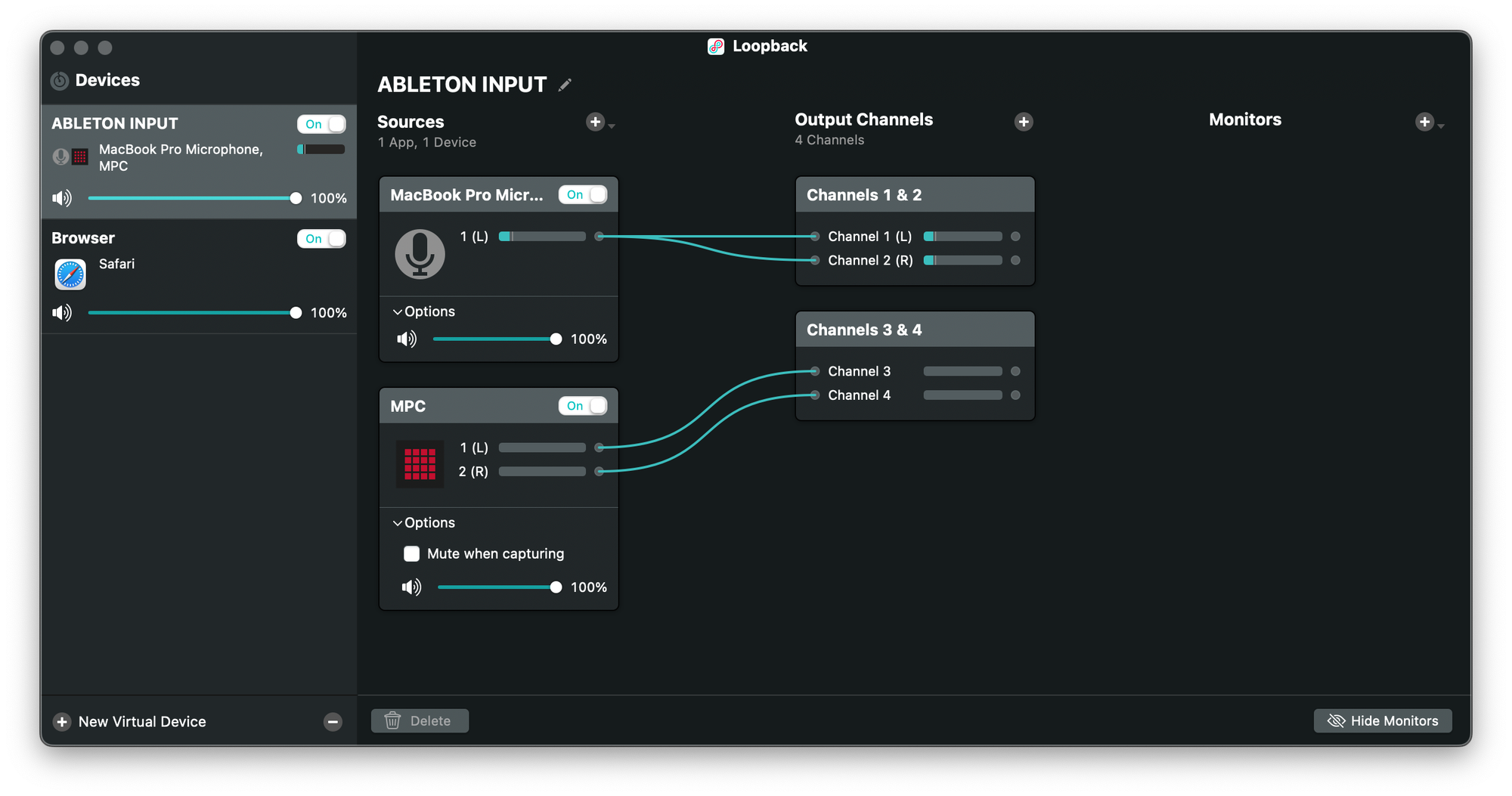
So, when it comes to creating audio projects, like the one I created yesterday, I would set up my tracks as follows: one track for my microphone if I want to speak, and another track for the audio I want to record from my MPC or any other device.
⚡️ You can support this work via a secure ABLE gift page. Visit ugiftable.com and enter code J99-H38 to contribute.